
Image
Local and remote images through the native image loader, with React Native's load events
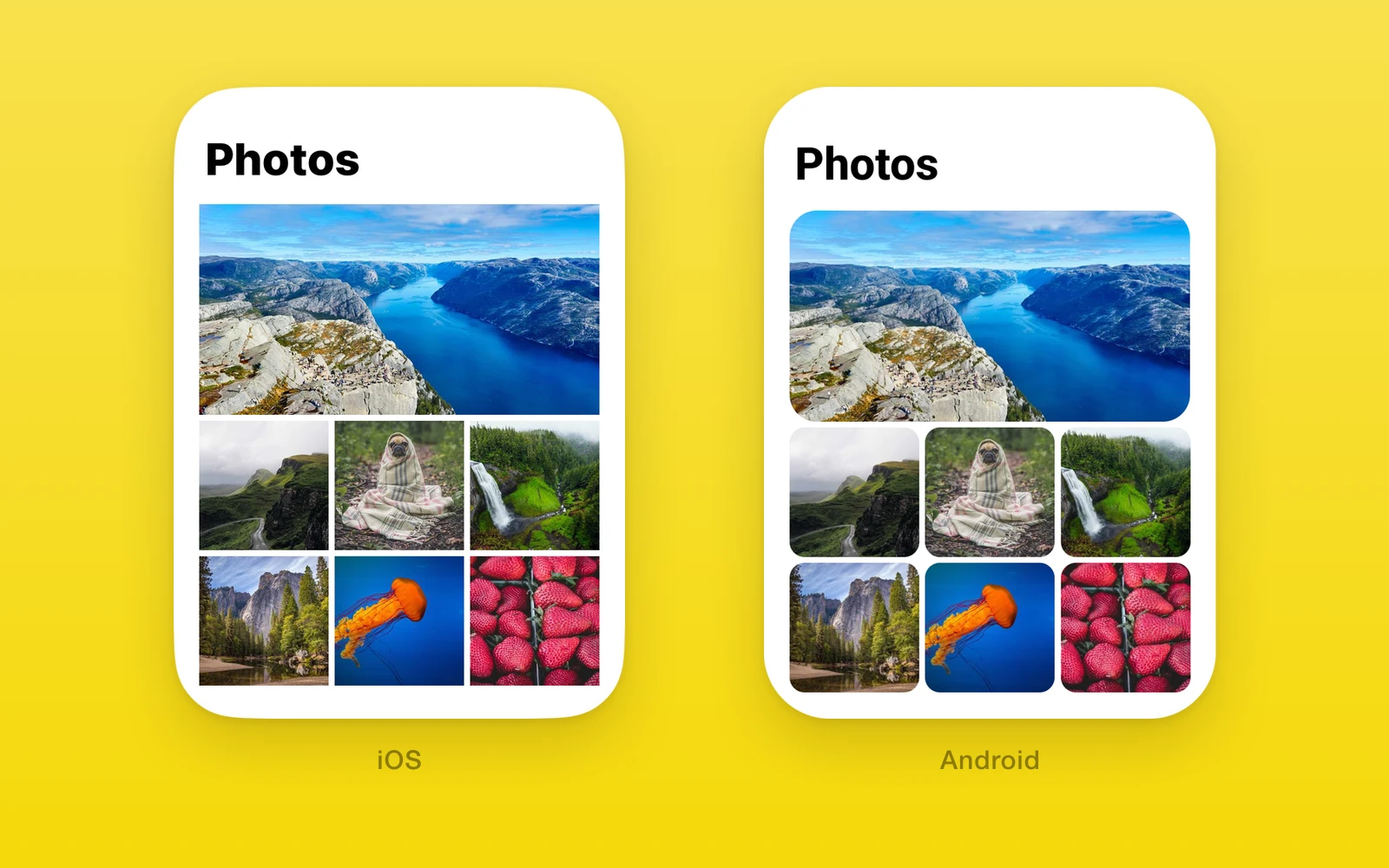
One.UI.Image shows a remote URL or a bundled image. On iOS and Android it
draws through Nitro Image, which downloads with SDWebImage on iOS and Coil on
Android, both with memory and disk caches. On web it is an img element.
It takes the same source shapes and load events as React Native’s Image,
and the loader ships with one, so remote images need no extra install.
Usage
import { One } from 'one'
function Avatar({ url }: { url: string }) {  return <One.UI.Image source={{ uri: url }} style={{ width: 48, height: 48 }} />}
Give the image a size. It does not size itself to the picture.
How it works
On iOS and Android the component loads the image in JavaScript with Nitro
Image’s loadImage, then hands the decoded image to a native image view. A
URL goes to the platform loader and its cache; a require() image resolves to
the dev server URL in development and a bundled file in release builds.
Loading in JavaScript is what lets the events match React Native:
onLoadStart fires when a source starts loading, then onLoad with the
pixel size or onError with a message, then onLoadEnd.
Each source gets its own native view, keyed by the URL. A new source mounts an
empty view that stays empty until that source loads, so the old picture never
shows under the new URL, even in a list that reuses its cells.
recyclingKey is passed to the native view for parity with Nitro Image, which
clears itself when the key changes; the per-source view already covers that
case.
On web, the img element loads the URL itself and the same events fire from
its load and error handlers. resizeMode maps to object-fit.
API reference
| One.UI.Image | Type | Description |
|---|---|---|
source (required)string | number | { uri: string }A URL, a { uri } object, or a bundled image from require(). | string | number | { uri: string } | A URL, a { uri } object, or a bundled image from require(). |
resizeMode"cover" | "contain" | "center" | "stretch" = "cover"How the picture fits when its shape differs from the view. | "cover" | "contain" | "center" | "stretch" = "cover" | How the picture fits when its shape differs from the view. |
recyclingKeystringWhen it changes, the view clears until the new image loads. | string | When it changes, the view clears until the new image loads. |
onLoad(event: { nativeEvent: { source: { uri: string; width: number; height: number } } }) => voidThe image loaded, with its size in pixels. | (event: { nativeEvent: { source: { uri: string; width: number; height: number } } }) => void | The image loaded, with its size in pixels. |
onError(event: { nativeEvent: { error: string } }) => voidThe image failed to load. | (event: { nativeEvent: { error: string } }) => void | The image failed to load. |
The image also takes React Native Image props such as style,
onLoadStart, onLoadEnd, and accessibilityLabel.
Platform differences
| iOS | Android | Web | |
|---|---|---|---|
| Drawn by | Nitro Image view | Nitro Image view | img element |
| Remote loader | SDWebImage | Coil | The browser |
| Bundled images | Yes | Yes | Throws, use a URL |
| Center mode | Natural size, centered | Natural size, centered | Natural size, centered |
Limits and gotchas
- Round corners with a parent view.
borderRadiuson the image does not clip the picture on Android. Wrap the image in aViewwithborderRadiusandoverflow: 'hidden'to round it everywhere. - Web needs a URL. A
require()image is an asset id, which web rejects with an error. Pass a URL string on web. - The view is empty while loading. There is no placeholder prop. Put a background color on the image or a view behind it if the gap should show.
- Each new source mounts a new view. Changing
sourcereplaces the native view rather than updating it, so the previous picture is gone at once.
Examples
Show a placeholder until the photo loads
import { useState } from 'react'import { View } from 'react-native'import { One } from 'one'
function Photo({ url }: { url: string }) {  const [loaded, setLoaded] = useState(false)  return (    <View style={{ width: 240, height: 160, borderRadius: 12, overflow: 'hidden', backgroundColor: '#e5e5e5' }}>      <One.UI.Image        source={url}        style={{ flex: 1, opacity: loaded ? 1 : 0 }}        onLoad={() => setLoaded(true)}      />    </View>  )}
The gray parent shows until onLoad, and it also rounds the corners on every
platform.
Size to the picture’s shape
import { useState } from 'react'import { One } from 'one'
function Banner({ url }: { url: string }) {  const [ratio, setRatio] = useState(2)  return (    <One.UI.Image      source={url}      style={{ width: '100%', aspectRatio: ratio }}      onLoad={({ nativeEvent }) => setRatio(nativeEvent.source.width / nativeEvent.source.height)}    />  )}
onLoad reports the pixel size, so the banner keeps a guessed ratio until the
picture arrives and then takes its real shape.
Edit this page on GitHub.